

DOWNLOAD AND INSTALL INSTRUCTIONS
Please read the instructions carefully.
Because we only distribute free software utilities, with no annoying advertising and without sponsorship of any kind, it is impossible for us to pay for the certificates required by Microsoft to display our App as "Trusted".
This means that it takes a few extra steps to install our software on your Windows 10 PC or tablet.
Please follow the installation guide below and you'll be able to enjoy our software totally free of charge.
Once you have read the instructions, keep them handy, then click on the download link at the bottom of this page.
Step 1:
The download link, at the bottom of this page, will take you to our cloud storage location where you will find the PCZip Installation folder to download.

Step 2:
Left click on the folder to select it ...

Step 3:
then click the download button:

Step 4:
One Drive will download the folder as a zip file.
At the bottom left of your browser, you may see this message:

Step 5:
Your browser will automatically scan the download for viruses:

Step 6:
Once the download and virus scan process are complete, you will see this message at the bottom left of your browser:

Step 7:
Click on the Save As button to the right of the message and in the popup window, select the temporary folder to save the ZIP file in. We suggest c:\temp
The zip file containing the PCZip application installer is now stored on your computer. To go to its location and unzip it, click on the three dots button and select “Show in folder”:

Step 8:
This will open a Windows Explorer window at the location of the zip file. Double click it and Windows will display the PCZip installation folder.
Right click on the folder and select copy.

Step 9:
You can now paste the PCZipInstaller folder in a temporary location (it can be deleted after the installation is complete) anywhere you would like it to be on your hard drive (we suggest the temporary folder on your “c:\” drive or any other drive on your computer)

Step 10:
Once done, you can now verify our digital signature assigned to the setup executable.
Right click on Setup.exe (highlighted in red in the example picture)...

Step 11:
and select Properties. The setup.exe properties window will open as shown in the example picture. Click on the “Digital Signatures” tab.
The signature list should appear exactly as shown in the example snapshot here:

Step 12:
Once you have verified the signature, run the installation program by double clicking the setup.exe file.
Windows will present you with this blue warning popup window:
This is displayed despite the fact that we did sign our own application, but as explained earlier, in the absence of a paid certificate from a third-party company, we cannot remove it.
If you downloaded the program from our website and you checked the digital signature in the previous step, then you can continue the installation safely.

Step 13:
Click the “More Info” option. Our program is signed by us and contains our publishing name, but Windows will insist that the Publisher’s name is unknown.
Click the “Run anyway” button as highlighted in red in the snapshot:

Step 14:
You may see this popup if those dependencies are not already installed on your computer:
These are Microsoft Windows extra components required by PCZip. Click the Install button:

Step 15:
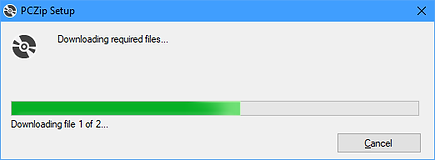
The two installers for the required dependencies will be downloaded from the Microsoft website:
Step 16:
Both of those installations will require you to agree by clicking Yes in the confirmation popup as shown:

Step 17:
The installation of PCZip will then start.
In the following popup, click the Install button.

Step 18:
The installation progress will be shown:

Step 19:
The setup program will create a shortcut in your Start menu and then launch PCZip automatically.
The first time the program is launched, Windows will still try to stop it from running and you will see this blue popup again.
Once more and for the final time, click the “More Info” option and click the “Run anyway” button

Final Step 20:
PCZip will start and will be marked as safe by Windows. You will never see those blue popups warnings anymore. Hurrah!
Please see the Help section in the program to learn about all the features included.
